Appearance
Boodil - Europe payments app for Shopify
Installing the app on your store allows your customers to easily and securely make payment. Note: a merchant account is required.
Installation on a shop
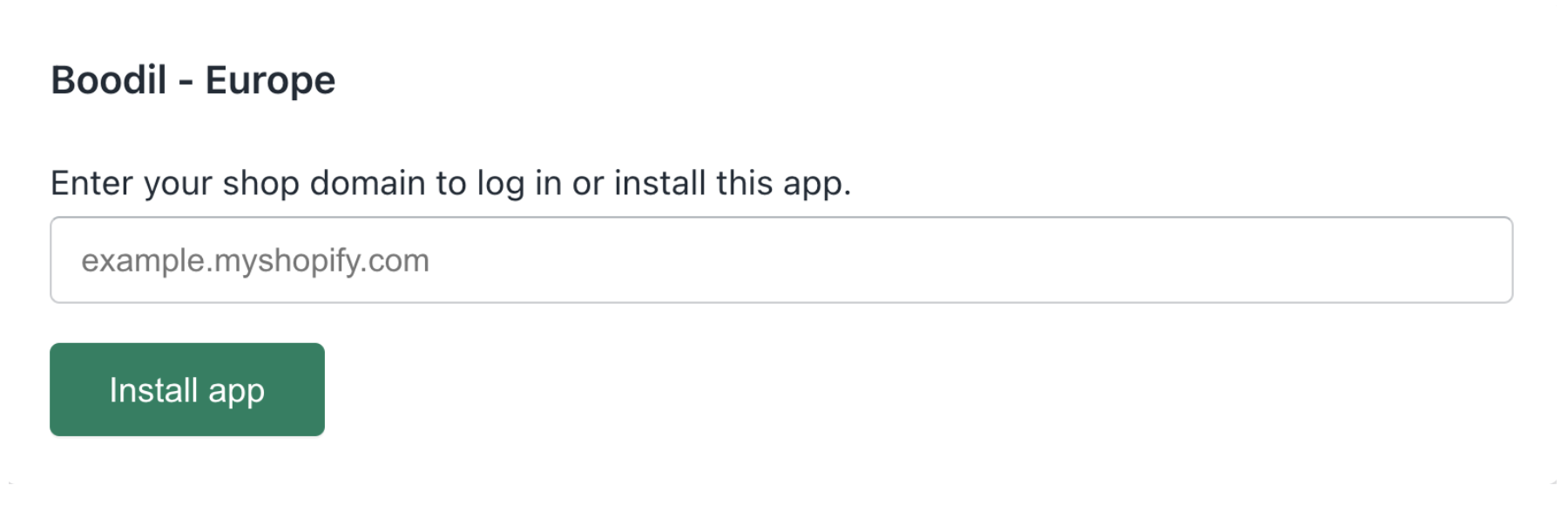
Installation is performed via an install link. After entering your store’s domain, Shopify will then simply guide you through the process.
Configuration
Your account credentials must be saved within the app's configuration page to enable the payment method. All fields are required.
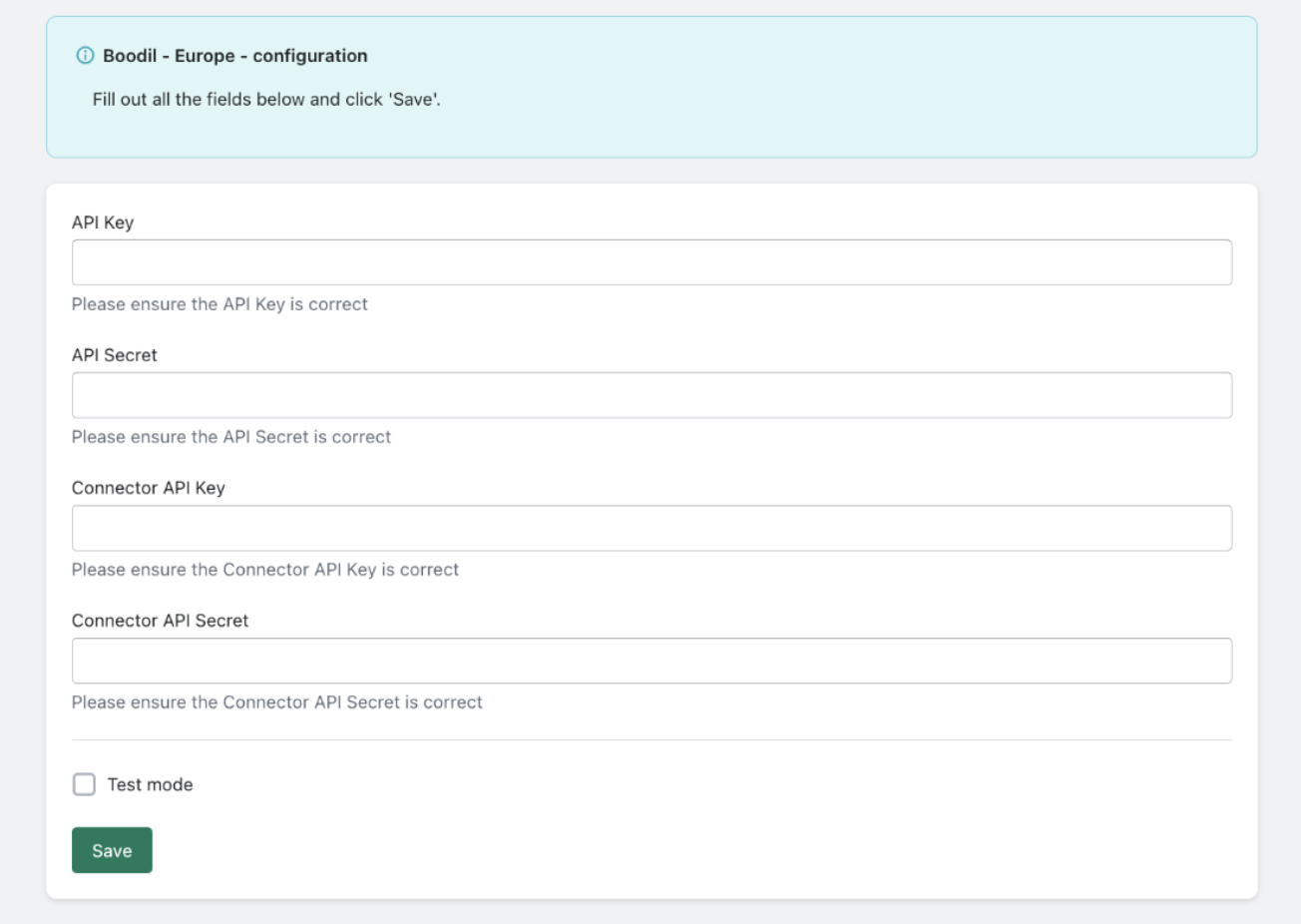
Warning: Please double check you have inputted your credentials correctly. Any errors or the inputting of bad credentials will mean you’re unable to process a payment.
If necessary, the configuration form can be accessed via Shopify Admin. Click "Settings" > "Payments" > "Select Boodil - Europe (by clicking next to the arrow (>))" > "More actions" > "Manage".

Payments
All card payments are securely processed through the payment page.
Refunds
You can issue refunds directly from your Shopify admin for orders.
- Navigate to "Orders" from the left-hand menu.
- Select the order you want to refund.
- Click the "Refund" button at the top right of the order page.
- Select the items and quantities to refund
- Adjust the refund amount if needed (e.g., partial refunds)
- Optionally restock items and leave a note
- Click "Refund" to process the refund.
Test Mode
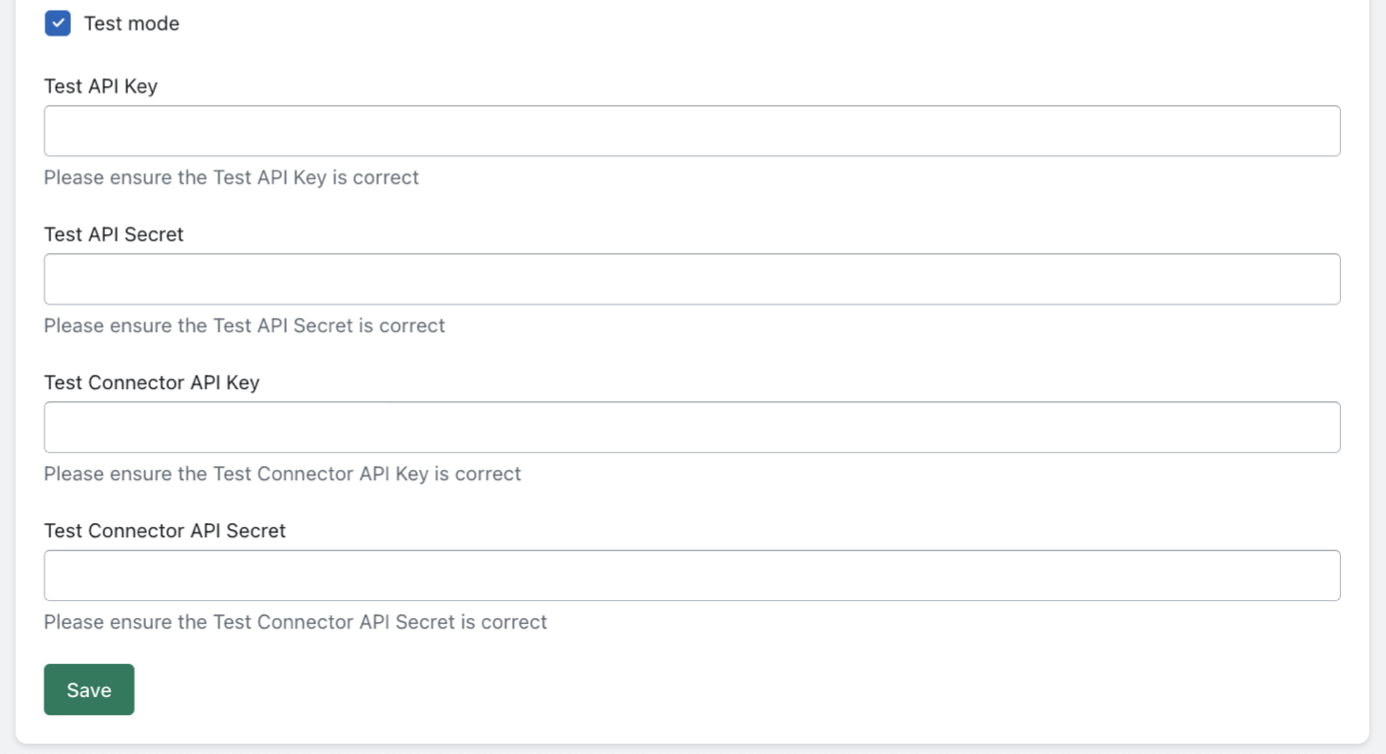
Test mode can be enabled via Shopify Admin. Click "Settings" > "Payments" > "Boodil - Europe", then you can enable test mode by ticking the "Test mode" box. You’ll need to ensure you request Test credentials to input.

In order to process test payments, test credentials are required to be filled in on the configuration page . These fields will become visible after ticking the "Test Mode" box.